Every brand designer gets the file eventually: a logo saved as a JPEG, a decade-old flyer scan, or an Illustrator file where every word was converted to outlines before handoff. Illustrator’s Retype panel scans that lettering and suggests matching fonts. This workflow is synthesized from Adobe’s own documentation, several independent guides, and user reports on how the feature has changed, plus general type-matching practice. It isn’t something we’ve tested end to end on a real project.
-
Prep the source before you scan. Place the image in Illustrator, or select the outlined text in the file you were sent. Retype does best on clean, straight, single-font lines. Diana Toma’s Envato Tuts+ guide, written during the beta, found it worked best on straight text that isn’t distressed or distorted, and not at all on curved, tilted, or wavy text. Adobe says manual selection works best on horizontally aligned, single-font text. If the art is a crooked photo, straighten and crop it first. If it’s a busy poster, crop down to the line you actually need.
-
Open Retype and run a match. Select the image or outlines and choose Window > Retype. You can also reach it from the Type menu, the right-click menu, or Quick Actions in the Properties panel. Click Find Matching Fonts. Retype draws a dotted line around each word it detects and groups neighboring words that share a font.
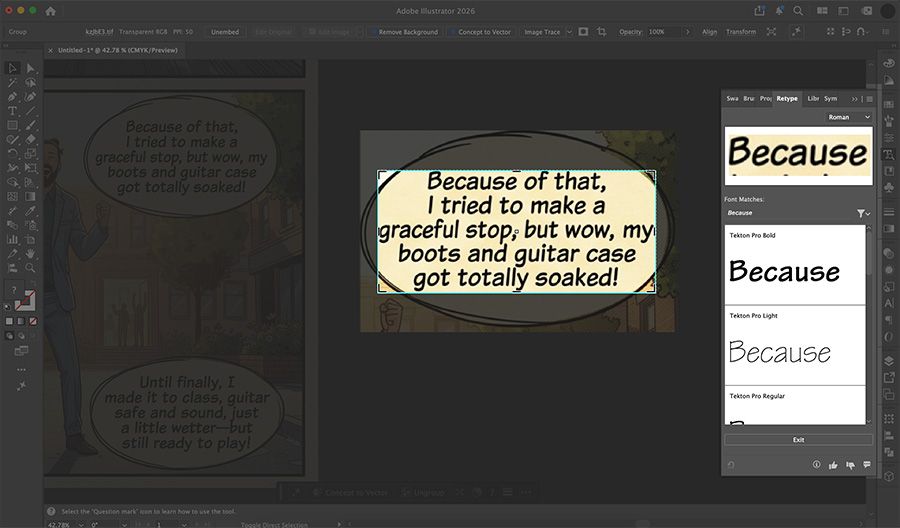
Choose Window > Retype or reach it from the Type menu, the right-click menu, or Quick Actions in the Properties panel. -
Point it at the right text. Retype highlights the largest text first. Click another word to get matches for that one instead. If the word you need has no dotted line around it, drag a marquee over it. Adobe says to use the marquee only when detection misses the text.
-
Narrow the list on purpose. By default you get 10 matches ranked by closeness, and Find more font matches at the end adds five more. Use the filter to show only Adobe Fonts or only fonts on your device. Showing only Adobe Fonts is the quickest way to a shortlist you can license and sync right away. Switch the script to Japanese when the lettering calls for it.
-
Preview with letters that tell fonts apart. Type your own sample text into the preview field and pick a larger card size from the panel menu. Don’t preview with the client’s name alone. Use the characters that separate similar typefaces: a, g, R, Q, y, the numerals, and an ampersand. Star the candidates that survive. When you exit scan mode, the panel shows your favorites.
-
Check the match against the original, not against Retype’s ranking. Set the top candidates as live text over the original at the same size and drop the opacity. Compare stroke contrast, x-height, terminals, and spacing. Retype ranks by visual similarity. It can only suggest fonts from Adobe Fonts and the ones on your machine, so when the original isn’t in either, or was customized, the best it can offer is a close relative rather than the exact face. For a logo, a close relative may be fine for supporting copy but not for the wordmark itself.
-
Add the font and rebuild the text as live type. Hover over a match and click to add it from Adobe Fonts. For text that’s already live, Adobe’s documented route is to select it, run Match Font, and then apply a suggested font from the last scan or your favorites. For outlined lettering, set new live text in the matched font, align it over the outlines, adjust tracking and kerning until it lines up, then delete or hide the outlines.
-
Keep the original and note what you found. Keep the source image or outlines on a hidden, locked layer, and write the matched font, weight, and any tracking adjustments in the file or brand notes. The next person who opens it won’t have to scan it again.
Why it matters for designers
Identifying a font used to mean uploading a screenshot to a web service, then hunting down the matches one at a time. Retype does the same job inside the file, against Adobe Fonts and the fonts on your own machine. Adobe says it searches more than 30,000 fonts. The fonts it suggests are often ones you can activate on the spot.
The bigger point is where the sources disagree, because it changes what you should expect. Retype launched as a beta that could also turn text inside an image into editable live text. Older guides, and at least one current guide, still describe that conversion. Adobe’s current help pages only cover finding fonts and applying them to text that’s already live, and Adobe’s product page doesn’t mention conversion either. An Illustrator feature request from February 2025, still drawing comments in 2026, says Retype is now limited to identifying fonts. So plan on Retype telling you the font, with the rebuilding left to you. If your version still converts text, treat that as a bonus.
What to watch out for
A match isn’t proof. Custom lettering, modified logotypes, and fonts that aren’t in Adobe Fonts or on your machine will still produce confident-looking suggestions that are only close. If a font has to be exact, for a trademark or a sign that sits next to existing ones, confirm it with the client or the original designer.
Licensing follows the font you choose, not the tool that found it. An Adobe Fonts match is covered by your Creative Cloud plan under Adobe’s terms. A match from your own machine is only as licensed as that file. A match you’d need from a foundry has to be bought.
Low-resolution, compressed, or blurry images make for poor matches. Use the cleanest version of the artwork you can get, even if that means asking the client for a better file.
Retype’s options have shifted since the beta, so menus and steps in older tutorials may not match what you see. If a step doesn’t line up with your version of Illustrator, trust the app over the guide.