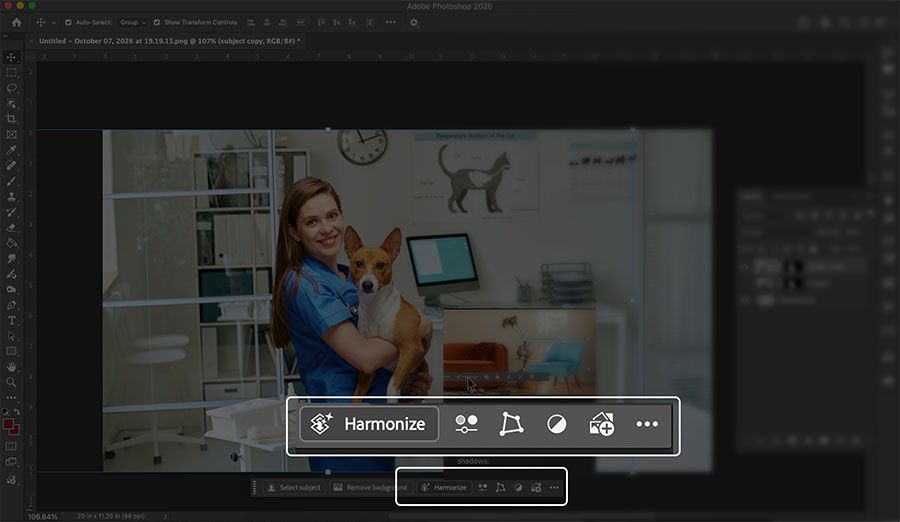
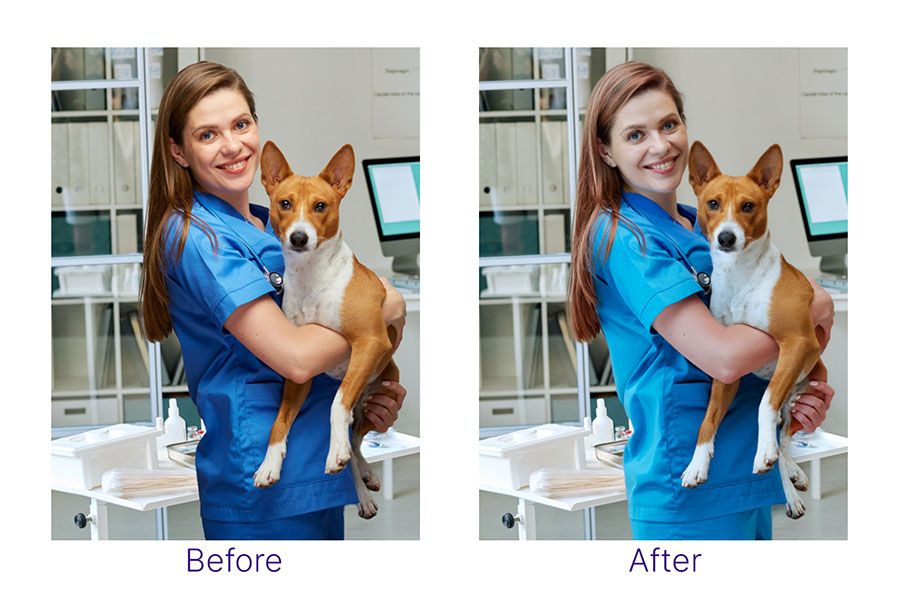
Harmonize is Photoshop’s answer to the hardest part of compositing: making a subject look like it was actually lit by the scene you dropped it into. Click it and Photoshop reworks the subject’s highlights, shadows, and color to match the background, and often adds a contact shadow too.
This is a synthesis of Adobe’s own tutorial and several hands-on guides, plus general Photoshop knowledge, not a workflow we’ve tested end to end ourselves. One note on the sources: Adobe’s tutorial and the PHLearn guide are both taught by Aaron Nace, so they’re one voice, not two. Colin Smith at PhotoshopCAFE and photographer John Paul Caponigro are the independent ones, and they’re where the resolution workaround comes from.
- Prep the subject as a smart object. Place the subject on the background as a smart object and remove its background (Remove Background in the Contextual Task Bar or the Layers panel works). The cutout should be clean before you harmonize. Harmonize matches light, not edges, so stray halo pixels get “harmonized” right along with everything else.
- Get scale, position, and perspective right first. This is the step people skip. Harmonize doesn’t fix proportion or perspective, so a subject that’s too big or tilted wrong will still look pasted in, just with better color. Transform it until the size and horizon feel right before you spend a credit.
- Duplicate the subject layer and hide the copy. Harmonize creates a new layer rather than overwriting the original, but keeping an untouched copy at the bottom of the stack costs nothing and gives you something to mask back to later.
- Decide how much of the scene Harmonize should see. This is where sources split. Adobe’s tutorial runs it straight on the full document. PhotoshopCAFE and John Paul Caponigro both describe Harmonize’s output as limited to roughly 1024 x 1024 pixels stretched across the whole image, which makes subjects look soft on large files. Their workaround: copy a tight crop of the background around the subject, put that and the subject together in a smart object, and harmonize inside it, so the same output resolution covers a much smaller area. The tradeoff is context. Crop too tight and Harmonize can’t see enough of the scene’s light, or has no room to draw a shadow. Leave enough space around the subject for both.
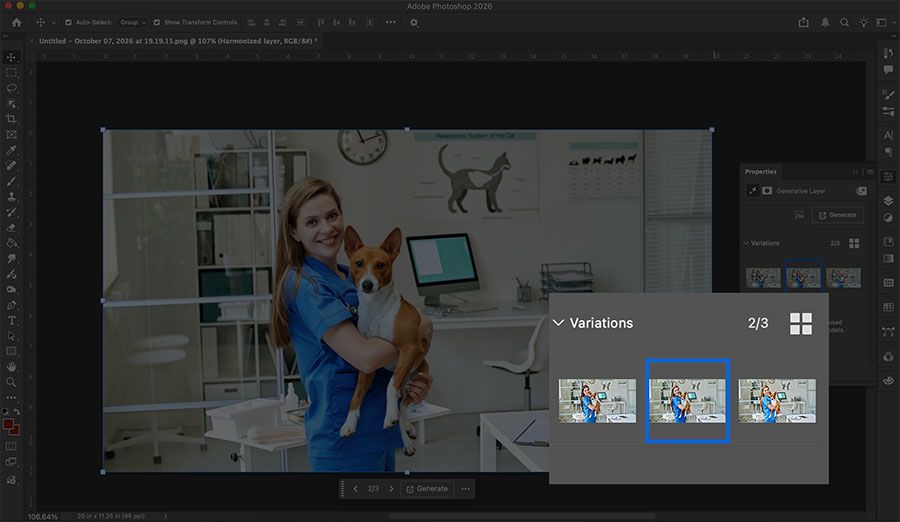
- Run it, then run it again. Each generation gives you three variations in the Properties panel. PHLearn’s advice is to generate at least twice, since the fourth or fifth option is often better than anything in the first batch. Compare them on the direction of the light first. Each run uses a generative credit, so it’s worth getting steps 1 and 2 right first.
- Harmonize before other generative edits. If you also plan to use Generative Fill on the subject (changing clothing, adding a prop), harmonize first. Lighting matched at the end can undo the consistency of earlier fills.
- Check it at 100% and repair detail by hand. Zoom in on faces, product labels, and any text. Where Harmonize softened something that has to stay crisp, mask the harmonized layer to let the original copy show through in just that area, then match its color with a clipped Curves or Color Balance adjustment.
- Finish with classic techniques. Harmonize gets the light close, and the rest is still traditional compositing. Adobe’s own tutorial adds lens blur to the background so depth of field matches, and uses Blend If in Layer Style to let underlying texture show through added elements. A little grain or noise over the subject helps it match the background’s texture too.
Why it matters for designers
Matching light used to mean Curves, Color Balance, painted dodge and burn, and a hand-built shadow, often an hour of work for a single subject. Harmonize collapses most of that into a click and a choice between variations. That changes what’s practical for client work: quick product-in-context mockups, a person placed on location for a pitch, a dozen variations of a campaign image.
Its output is also easy to keep under control. Because it lands on its own layer, everything you’d normally do after a composite (masking, adjustment layers, blur, grain) still works on top of it.
What to watch out for
The resolution limit is the big one. The guides describing the 1024 x 1024 ceiling date from 2025, and we couldn’t confirm the exact number today. But in August 2026, replying to a bug report about soft Generative Fill results, a Photoshop product manager confirmed that Photoshop’s generative features still produce output at a fixed internal resolution, so results can look soft on larger documents. His suggested workaround is the same idea as step 4: work on a smaller area, then composite it back. That thread is about Generative Fill rather than Harmonize specifically, so check your own results at 100%.
Even Adobe’s own tutorial doesn’t stop at the click: it finishes the composite with Lens Blur and Blend If, and the independent guides spend most of their time on what to do around Harmonize, not in it. Plan on finishing by hand for anything that’s going to print or be seen large.
It doesn’t fix a bad setup. Wrong scale, wrong perspective, or a messy cutout will survive harmonizing, so the prep in steps 1 and 2 matters more than which variation you pick.
Credits, data handling, and disclosure are covered in the sidebar.